This continues emu_x86 Part 1, where I described the emulator and its two PCs. An emulator alone is not enough to work with old software. You need to get files in and out of the disk images, to look inside a program that crashes, and to run things without clicking. This part covers the four tools I built for that.
A disk manager
A disk image is hard to handle from outside. The emulator page can hold images up to 256 MB in memory, but my own MS-DOS disks are 500 MB to 1 GB. So I wrote a second page, the disk manager: a file browser, in the style of Windows Explorer, for FAT12, FAT16 and FAT32 images and CD images.
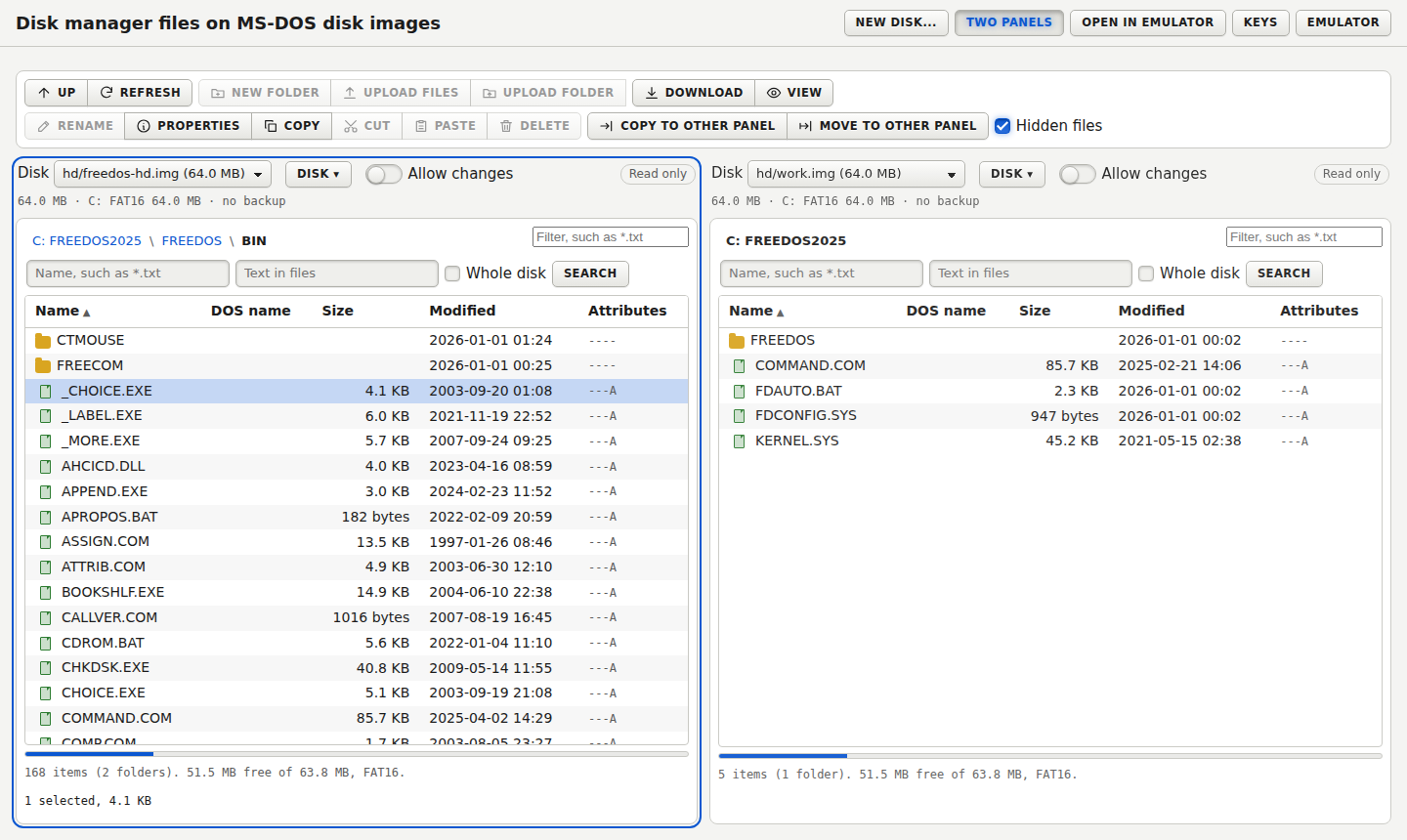
It has two panels, so you can copy or move files between two disks, or inside one. It shows long names with their DOS names, dates, sizes and attributes. You can search by name with * and ?, or for text inside files, in one folder or on the whole disk. A name search of a 1 GB disk takes under a second. You can also view a file, download a folder as a zip, and create a new floppy or hard disk, formatted or empty.
How is it built? The server side is Python. Reading is done by my own code that seeks in the image, so a 1 GB disk is never loaded: it gives long names, dates and byte ranges without parsing the text output of a tool. Writing is done by mtools. Three rules came from tests and reviews:
- Nothing changes unless you allow it. Each panel starts read only. The switch “Allow changes” makes a backup of the disk first, and a change needs a token that exists only while the server runs.
- A disk that the emulator uses cannot be changed. The page leases an image while a drive holds it, so the manager and the emulator cannot write the same file at once.
- A move checks the copy before it deletes. A move copies the items, compares files, folders and bytes with what was read, and only then deletes the originals.
A test showed why this matters: mdel ::/D1/* deleted every file of a folder when the name came from the page. Now the name of an existing item is looked up on the disk first, and the program is given the name the disk holds, never the text the page sent.
The manager also checks and repairs the boot record of a disk:
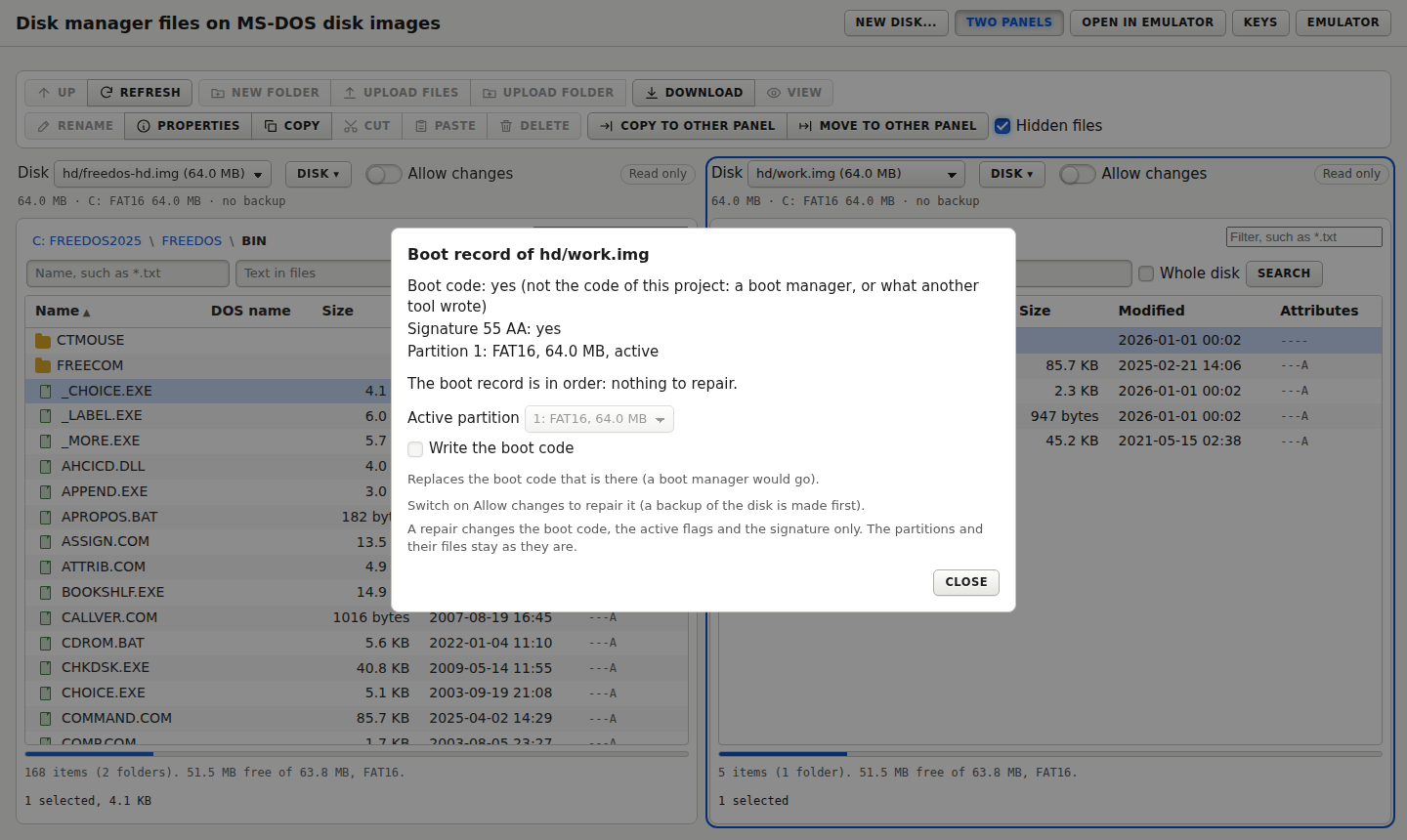
It tells you whether the boot code and the signature are there, lists the partitions, and can write the boot code or set the active partition. A repair changes only the boot code, the active flags and the signature, not the partitions or their files.
A debugger
The second tool is a debugger window, linked to the emulator page. It works for real mode and protected mode, on both PCs, and it is what I used to follow a program that went wrong.
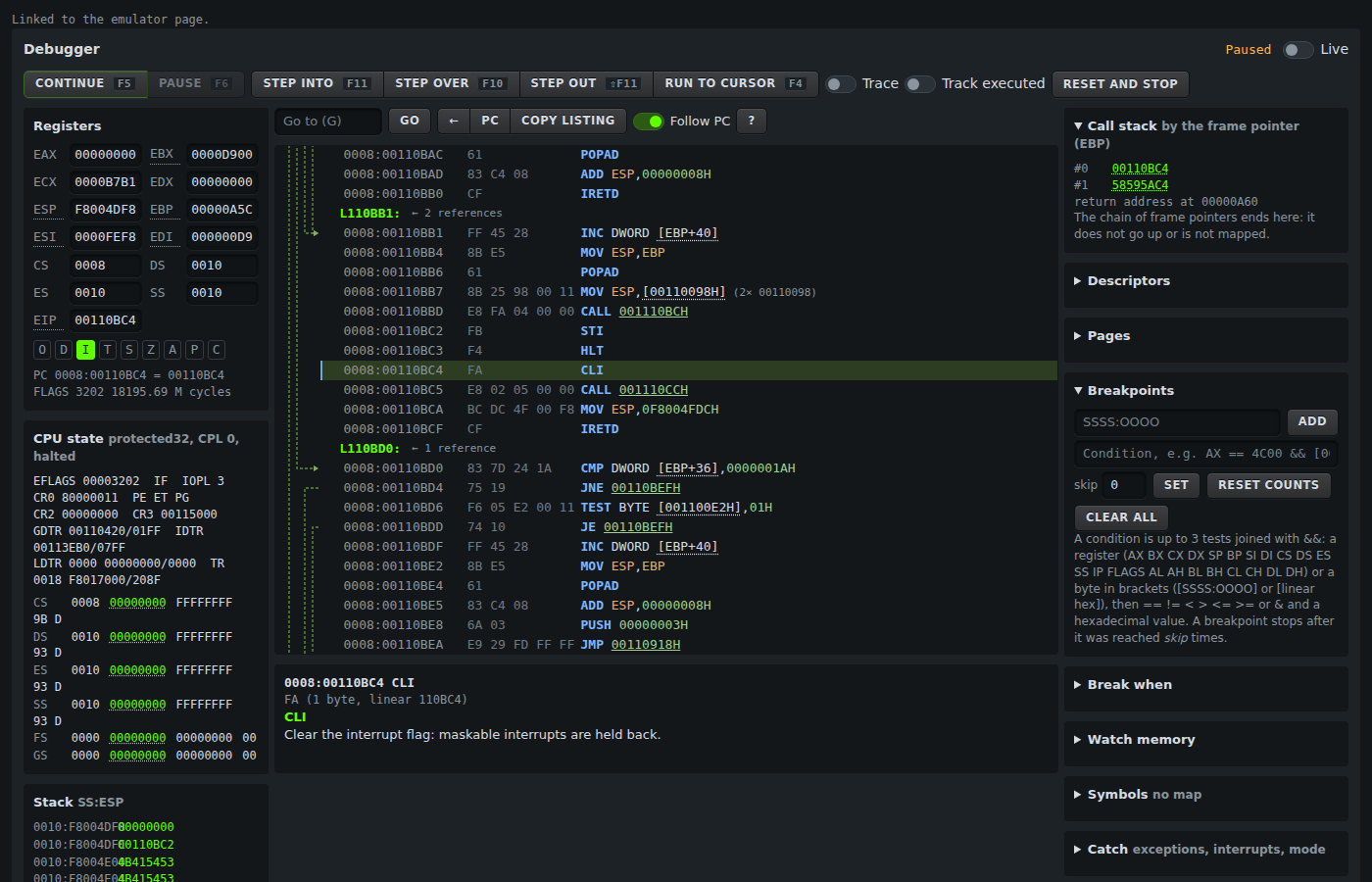
The engine is written in C, so tests and the browser use the same code, and the page only draws. It has:
- breakpoints with conditions and skip counts, such as
AX == 4C00, which can test registers, memory and flags; - watches on memory, with a size, a range and a condition, and breaks on ports;
- on the 386, catches for exceptions, interrupts, mode and task switches, and a triple fault;
- step into, step over, step out, run to cursor, and a trace of the last instructions;
- a listing with labels for jumps and a note on data references, and map files for names;
- the descriptor tables, the page tables and a call stack from the frame pointer chain.
Some design points were less obvious. An x86 instruction cannot be decoded backwards, so the lines before an address are found by decoding forward from several bytes earlier and keeping the start on which most attempts agree. A REP instruction needs special care, because the CPU moves the instruction pointer on at its first iteration. And a breakpoint written as selector:offset in protected mode is worked out again at each run, so it follows its descriptor if the program changes it.
emuctl: a PC for scripts and agents
The third tool is a command line, emuctl. It starts a PC in the background and answers commands, so a script (or an AI agent) can use it as a test machine. The PC is frozen between commands and advances only when a command asks for it. A run is then repeatable, and a script never races the machine.
The commands cover what you do with a keyboard and a screen:
typeandkeysend input, andexectypes a command at the prompt, runs until the prompt is back and prints what the command wrote;put,getandlsmove files in and out, through a small exchange disk that appears as drive B:;- there are breakpoints, watches and a trace, as in the window, and
exec --debugstops a DOS program at its first instruction; - a map file from Borland TLINK or Microsoft LINK lets you stop a C program at a function name;
- COM1 can be a serial console, which is how a Linux shell is driven.
Typing is harder than it looks. The PC receives key positions, and the keyboard layout that DOS loaded decides what they mean. My MS-DOS image uses a layout that is neither US nor the standard Spanish one, so emuctl calibrate types probes at a prompt, reads back what every key gives, plain, with Shift and with AltGr, and uses the result. A character that the layout cannot produce is reported, never dropped.
There is one bug I like in this part. A test put two files in a row on the exchange disk, and the second one disappeared. DOS does not check for a changed floppy within two seconds of its last access, so it trusted its cached FAT and wrote it back over the new file. Now every change waits for 2.1 seconds of emulated time. It produced no error at all, which is why I keep a review step for silent failures.
The native window
The last tool is a window for Linux, built with SDL2 (--window). It runs the same PC as the page, with the same keyboard table and mouse handling, in a normal window.
| The setup dialog | The window, with the configuration box |
|---|---|
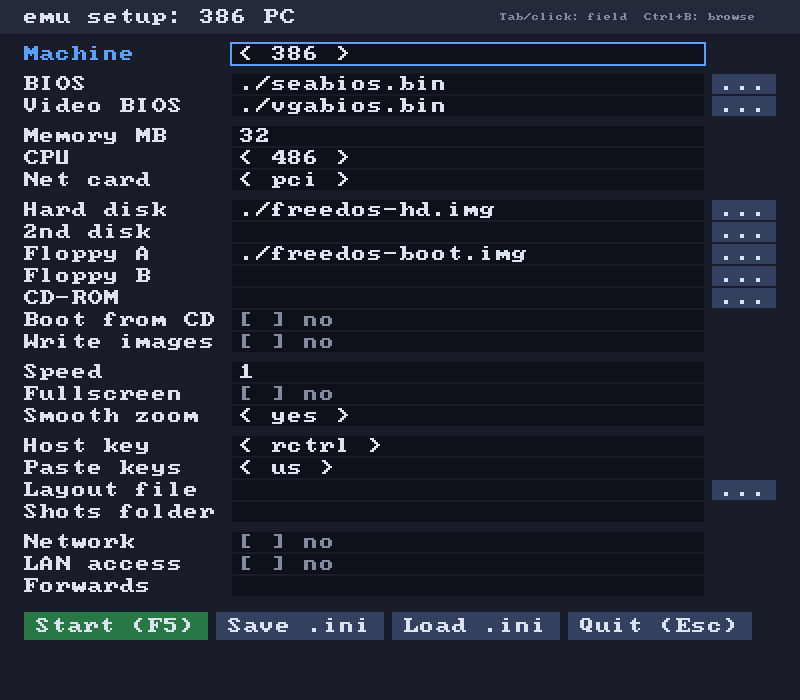 | 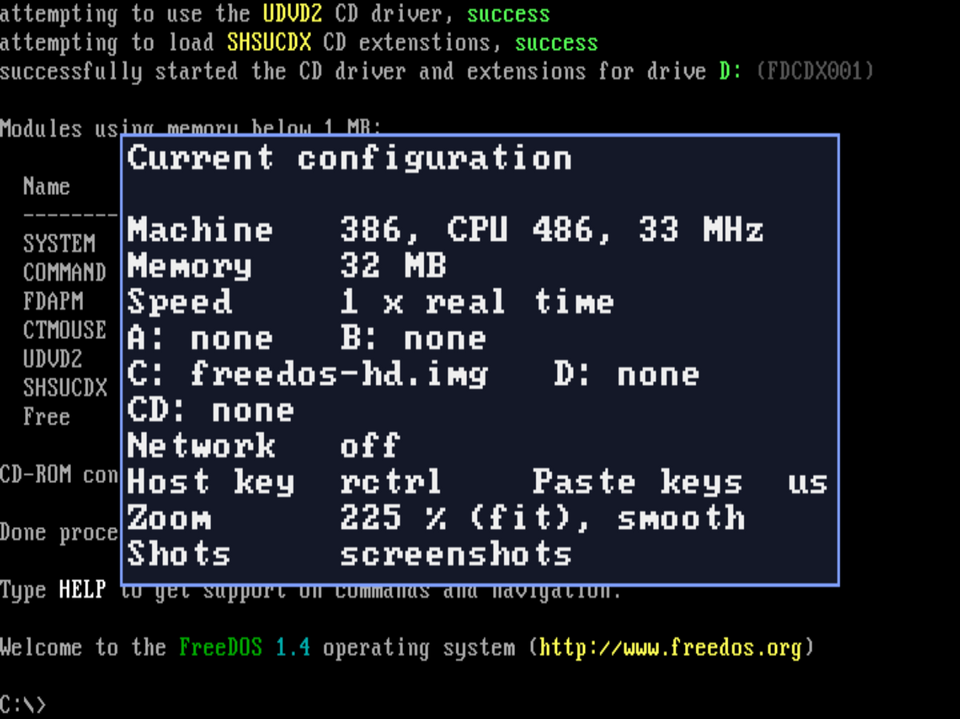 |
--setup opens a dialog where you choose the machine, the CPU, the memory and the disks, and save them in an .ini file for the next time. In the window, the right Ctrl key is the “Host” key: Host+H lists the keys, Host+I shows the current configuration (the box in the picture), and Host+F is full screen. It supports copy and paste, screenshots and the network.
A bug from the keyboard
The most instructive bug was the Spanish keyboard on the 386. KEYB SP loaded the wrong table: the minus key gave an apostrophe. The same disk in QEMU worked, so the fault was mine. KEYB stores a flag in one byte of the BIOS data area (40:96): it was 10h in QEMU and 00h in my emulator, and a watch on that byte showed the order of the events.
There were two faults, and each one hid the other:
- The 8042 keyboard controller sent its replies with no delay, so the INT 9 handler of KEYB was entered again while it still held the first byte. The bytes were used in the wrong order and the keyboard ID was lost.
- Bit 4 of port 61h, the refresh bit, changed on every read. KEYB waits for about 995 changes, which is 15 ms on a real PC, and here it ended in under a millisecond.
Both were fixed by timing: replies now wait one byte time, and the refresh bit follows the clock. Watching one byte in the debugger was what showed it.
Where it stands
All four tools are part of the same project and use the same core. The source code is not public yet. You can try the emulator in the browser at emux86.romheat.net, and the free FreeDOS images are in the emu_x86-disks repository. The disk manager and emuctl need the local server, so they are not in the online demo.